Linux MonitoringProvider App
Why choose Provider App for Linux
Designed for enterprise-grade deployments with Docker
Linux Optimized
Native support for all major Linux distributions with Docker integration
Docker-Based
Easy deployment with Docker Compose for seamless management
Secure & Private
End-to-end encryption with complete control over your resources and data
Production Ready
Designed for enterprise-grade deployments with graceful shutdown support
System Requirements
Make sure your system meets these minimum requirements
- Operating System: Linux, macOS, or Windows host with Docker support
- Docker: Docker version 20.10.0 or higher (including Docker Compose v2 support)
- Graphics Card: NVIDIA GPU with CUDA support (optional for CPU-only mode)
- Memory: 8 GB RAM minimum, 16 GB recommended
- Storage: 10 GB available space for Docker images
- Network: Broadband internet connection
Docker Compose Stack Installation
Follow these steps to install the OpenGPU Provider App using Docker Compose
Step 1: Download the Compose File
curl -o docker-compose.yml https://raw.githubusercontent.com/OpenGPU-Network/provider-suite/refs/heads/main/docker-compose.ymlStep 2: Prepare Environment Variables
You must provide PROVIDER_PRIVATE_KEY and MASTER_ADDRESS. Choose one of the following methods:
Option A: Use a .env file
PROVIDER_PRIVATE_KEY=your_provider_private_keyMASTER_ADDRESS=your_master_addressOption B: Export variables manually
export PROVIDER_PRIVATE_KEY=your_provider_private_keyexport MASTER_ADDRESS=your_master_addressStep 3: Launch the Stack
docker compose up -dView logs with:
docker compose logs -fManagement Commands
Common Docker Compose commands for managing your Provider App
- Stop Services: docker compose stop (keeps containers and volumes)
- Restart Services: docker compose start
- Full Restart: docker compose down -v && docker compose up -d
- Remove All: docker compose down -v (removes containers, networks, and volumes)
- View Logs: docker compose logs -f
Video Installation Guide
Watch our step-by-step video tutorial to learn how to install and set up the OpenGPU Provider App on Linux using Docker Compose
⚠️ Security Warning
Never share your PROVIDER_PRIVATE_KEY or other secrets publicly. Use secure secret management solutions in production.
Troubleshooting & Support
- Ensure your Docker version supports required features (Compose v2, --gpus all, etc.)
- If you encounter permission issues, check your Docker daemon and user permissions
- For GPU support, ensure NVIDIA Docker runtime is properly installed
Start Contributing Today
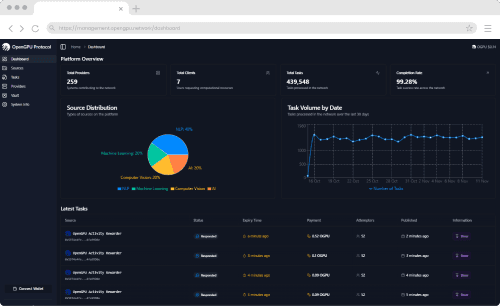
Once installed, you can immediately start contributing your GPU power to the OGPU Network and earn rewards. Our intuitive dashboard makes it easy to monitor your earnings, manage your resources, and optimize your contribution.
Need Help Getting Started?
Visit our comprehensive documentation and guides to learn more about OGPU Network, how to optimize your setup, and maximize your earnings.